ChatGPT, Gemini, Copilot: Protect Your Personal Data
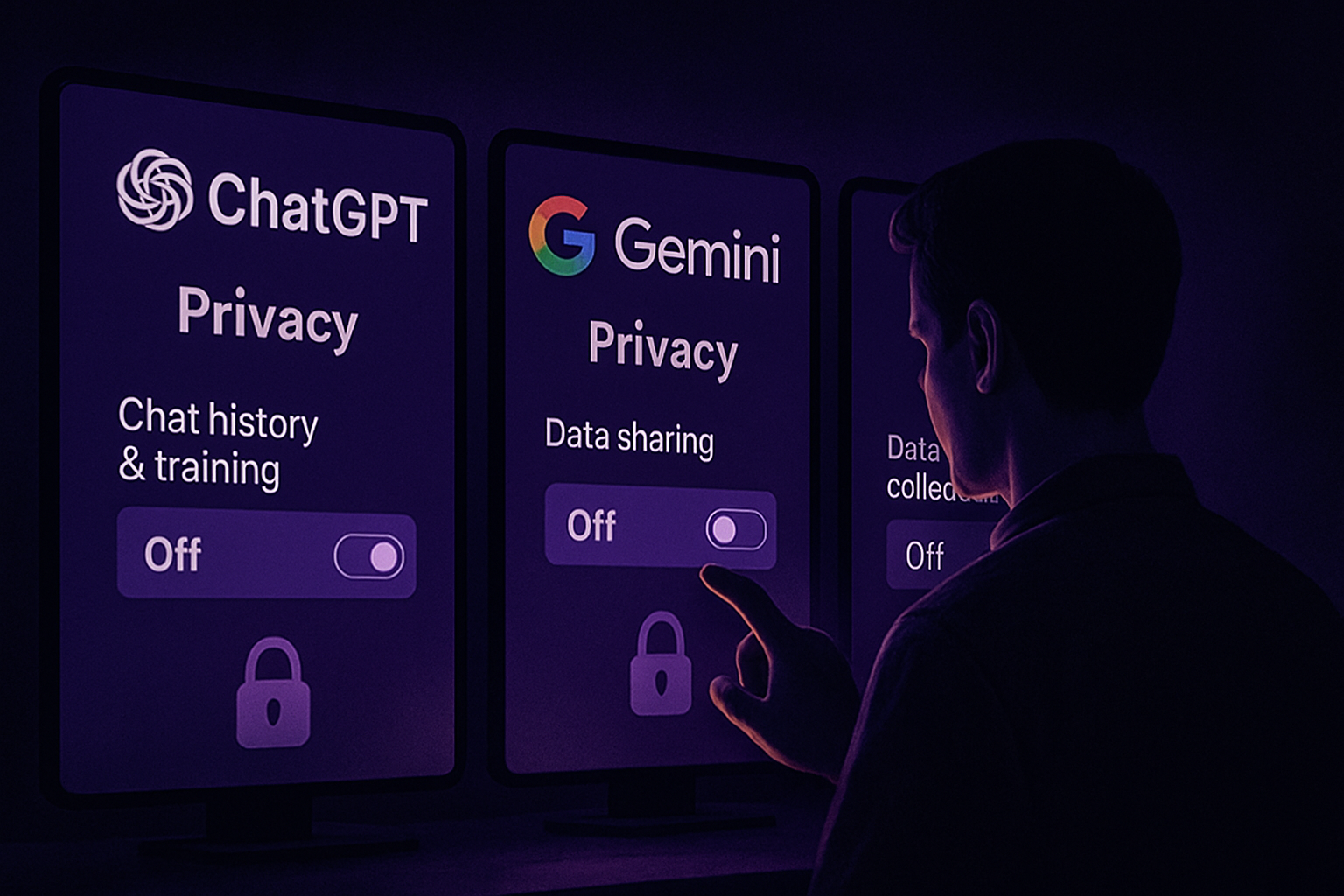
ChatGPT
Use ChatGPT Without an Account
For those who wish to interact with ChatGPT while preserving their privacy, it is possible to do so without creating an account. By logging out before asking your questions, you prevent your exchanges from being tracked or recorded by the system. However, this method involves giving up certain advanced features and facing stricter limitations in terms of usage. This approach is particularly useful if you want to keep certain conversations private and out of reach of recording systems.
Opt for a Temporary Chat
When you are logged into your ChatGPT account, you have the option to make your discussions temporary. By clicking on the "Enable Temporary Chat" icon located at the top right of the window, you can initiate a conversation that will not be saved in your history. While this is not recommended for highly sensitive information, it allows you to discuss personal topics without the chatbot remembering them. The input field turns black to indicate that the conversation is temporary, and a notice explains how it works.
Disable AI Model Training
OpenAI uses user conversations to improve ChatGPT. If you prefer that your data not be used for this purpose, you can disable this feature. To do so, go to your account settings, then navigate to "Data Controls." There you will find the option "Improve the model for everyone," which you can turn off, even though the data is anonymized. This allows you to maintain control over your personal information.
Be Cautious When Sharing Private Conversations
ChatGPT allows you to share conversations via platforms like X, LinkedIn, or Reddit, or through a standard link. However, as long as the link is active, the conversation remains accessible. Therefore, it is crucial to consider the implications of sharing discussions, especially if they contain sensitive or personal information. Think carefully before making a conversation public, as it could have unintended consequences.
Delete Any Past Conversations
To erase traces of past conversations, simply click on the ellipsis icon next to the relevant chat and select "Delete." Click "Delete" again to confirm your action. This operation ensures that the exchanges are no longer accessible and cannot be used for training or sharing purposes.
Google Gemini
Use Gemini in Temporary Mode
Google Gemini also offers a temporary mode for its users, similar to that of ChatGPT. This mode ensures that conversations are not saved in the history and are not used for AI training. To activate this feature, simply click on the "Temporary Chat" button next to "New Chat" in the left sidebar. Discussions are retained for 72 hours, providing some flexibility while protecting user privacy.
Disable AI Training
By default, Google uses exchanges with Gemini to improve the AI. If this bothers you, you can prevent this use by disabling the storage of your conversations. This means that your interactions will not appear in Google’s activity history or in your own chat history. Although the data is supposed to be anonymized, you may not appreciate this training capability.
Le brief IA que les pros lisent chaque soir
Les 7 actus IA du jour, décryptées en 5 min. Gratuit.
Inclus dès l'inscription : notre sélection des meilleurs guides & comparatifs IA.
Choisissez votre rythme
Gratuit · Pas de spam · Désabonnement en 1 clic
Remove Public Links to Shared Conversations
As with other AIs, you can choose to share your discussions with Gemini. However, it is important to manage these public links to prevent them from remaining accessible indefinitely. To do this, click on the three-dot icon next to the chat and select "Share Conversation." A public link is automatically created. At some point, you should review the conversations with public links to delete those you no longer wish to make accessible.
Stop Gemini Live from Recording Your Voice Conversations
Gemini Live allows for voice interactions with the AI, but these recordings may be used by Google. To avoid this, you can disable this option in the settings by unchecking the option "Improve Google services with your videos and shared audio screens and Gemini Live." Note that some audio recordings may be sent to human reviewers anonymously, although the data is anonymized.
Disable Personal Intelligence Memory Function
Gemini's Personal Intelligence memory records your interactions to personalize its responses. If you prefer that the AI does not retain this data, you can disable this feature in the settings. To do this, go to "Personal Intelligence" and turn off the memory. This prevents the AI from remembering your preferences and personal interests.
Microsoft Copilot
Disable AI Training
Microsoft uses text and voice conversations to train Copilot. If you want to avoid this, you can disable this option via the privacy settings. This prevents your exchanges from being used for AI training. To do this, turn off the switches for "Training on conversation activity" and "Training on voice conversations." This allows you to maintain control over how your data is used.
Remove Links to Shared Conversations
Copilot allows you to share conversations in various ways. To manage these shares, you can revoke public links via the privacy screen. This allows you to control who has access to your discussions. To delete a shared conversation link, go to the Privacy screen under Settings and select Manage Shared Links. Click the X icon or the trash can next to the conversation and choose Revoke.
Delete a Conversation
If you no longer wish to keep certain conversations in Copilot's history, you can delete them. This action is possible on the website or via mobile apps, ensuring that unwanted exchanges are no longer stored. On the website or in one of the desktop apps, click on the ellipsis icon next to the conversation you want to delete, select "Delete," and then click "Delete" again to confirm your action.
Disable Copilot Memory
Copilot can remember details of your interactions to personalize its responses. If this does not suit you, you can disable this memory in the settings. This prevents the AI from using your data from Microsoft products to personalize its interactions. Copilot can extract data from Bing, MSN, Edge, and other Microsoft products, but you can disable this feature to protect your privacy. To do this, go to Settings and select Memory. Turn off the switch for "Microsoft usage data" to prevent Copilot from using information from your Microsoft products and services. You can also turn off the switch for "Personalization and memory" so that Copilot does not remember anything about you. With mobile apps, you can also clear all items already stored in memory.
Brief IA — L'actualité IA en français
L'essentiel de l'actualité de l'intelligence artificielle, décrypté et expliqué chaque jour.