Claude Design: Optimize Your Creations with These 5 Methods
Le brief IA que les pros lisent chaque soir
Les 7 actus IA du jour, décryptées en 5 min. Gratuit.
Inclus dès l'inscription : notre sélection des meilleurs guides & comparatifs IA.
Choisis ton rythme
Gratuit · Pas de spam · Désabonnement en 1 clic
It is rare to achieve a perfect design on the first try with Claude Design. Users often need to adjust the generated creations to meet their specific needs.
Five Methods to Adjust Your Designs
-
Simple
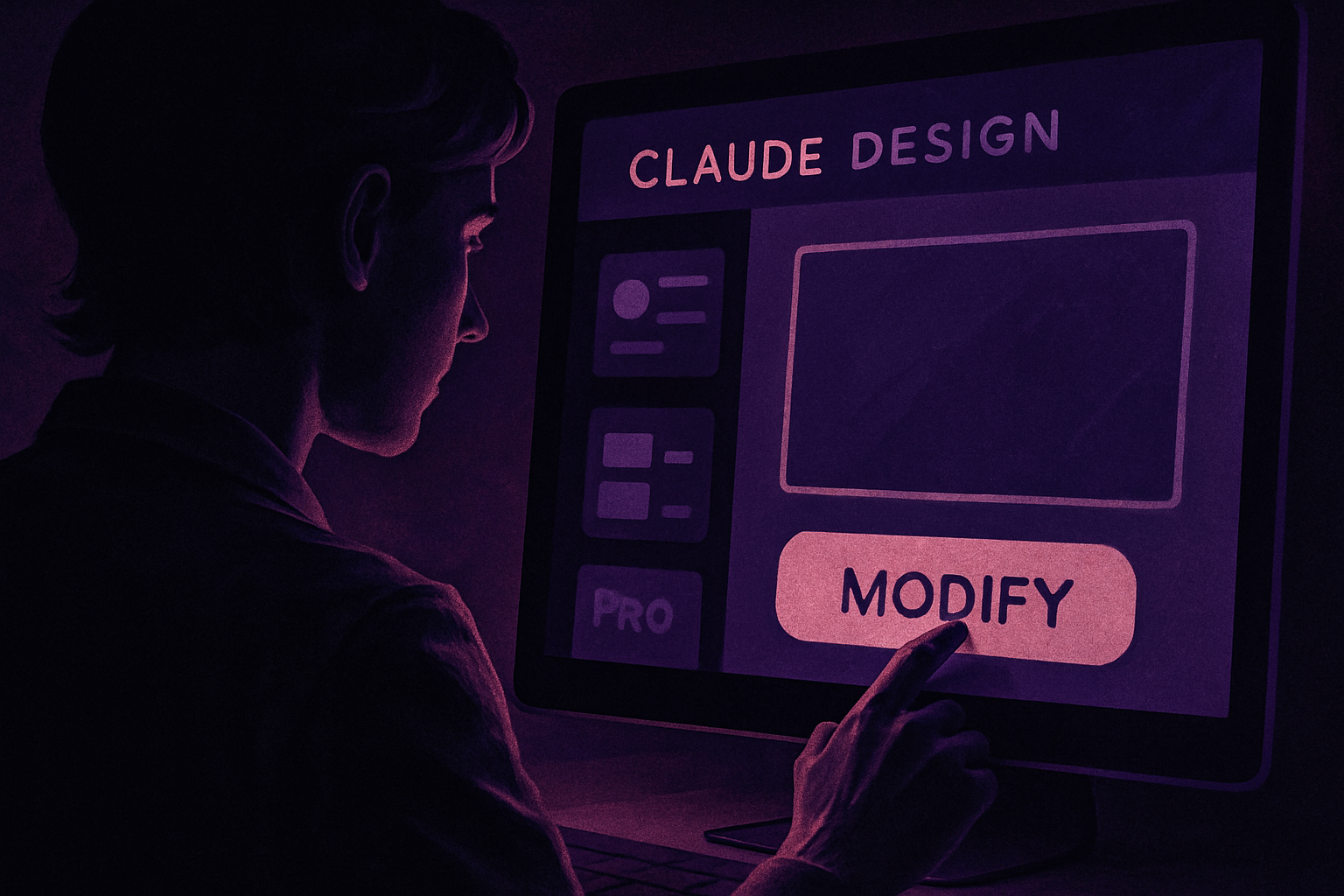
After generating a design with Claude Design, the user can click on the Edit button located in the upper right corner of the screen. By selecting the Simple tab in the left sidebar, it is possible to make small modifications. This includes changes to text or style of a user interface element, or even adding a new text section with a custom style. -
Pro
The Pro mode, while simply a slightly more advanced version of the simple editing, allows users to see a collection of groups and sections that make up the page. The user can select a group, section, or specific element and modify its properties. This mode also offers more visual options to refine the design.
Brief IA — L'actualité IA en français
L'essentiel de l'actualité de l'intelligence artificielle, décrypté et expliqué chaque jour.