Gemini Transforms Google Sheets with Integrated AI
Le brief IA que les pros lisent chaque soir
Les 7 actus IA du jour, décryptées en 5 min. Gratuit.
Inclus dès l'inscription : notre sélection des meilleurs guides & comparatifs IA.
Choisis ton rythme
Gratuit · Pas de spam · Désabonnement en 1 clic
Gemini: An AI Integration for Google Sheets
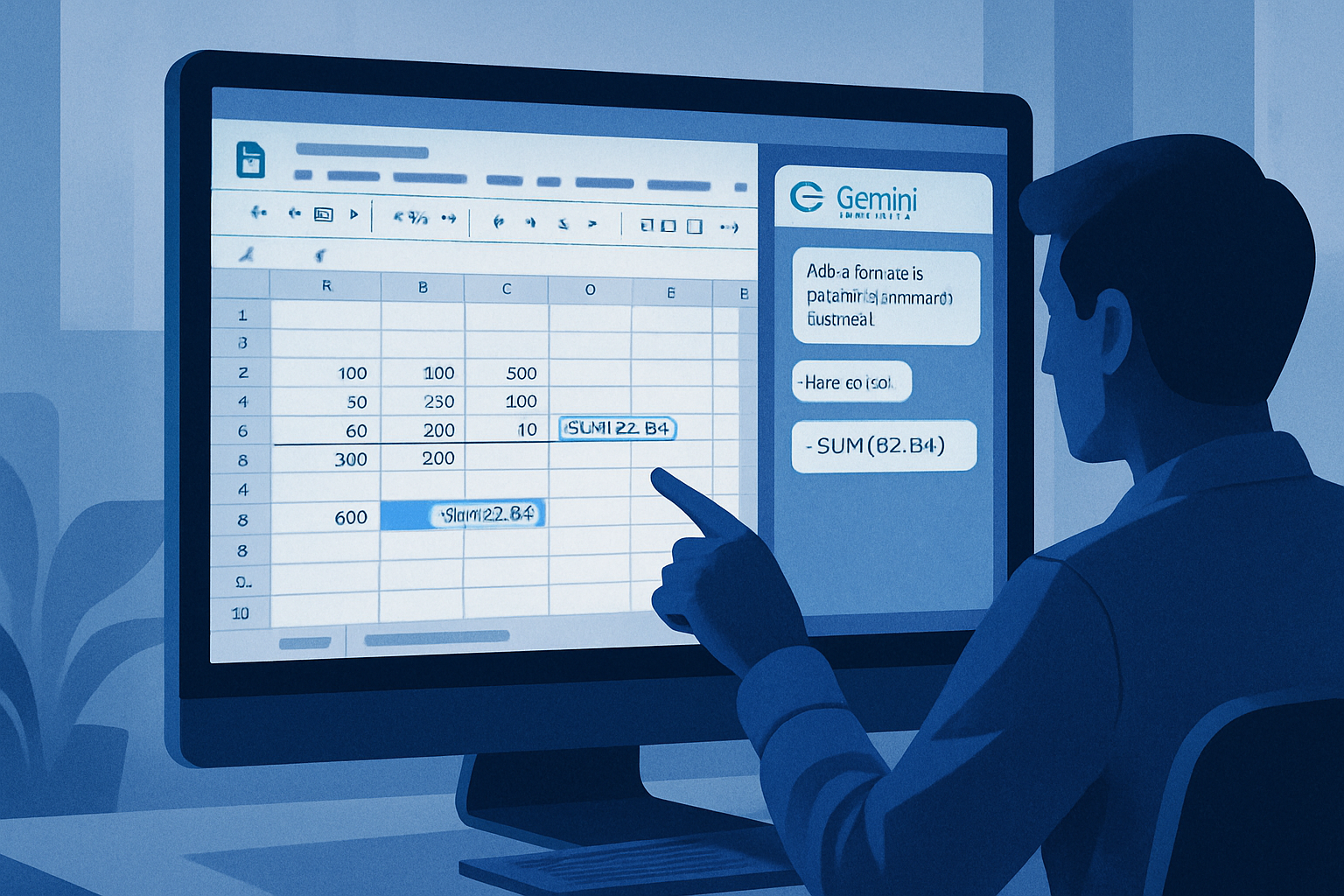
Google has introduced an innovative feature in Google Sheets through the integration of Gemini, an advanced artificial intelligence. This technology allows users to create, fill, and manage spreadsheets using natural language commands. Instead of manually designing tables and formulas, you simply describe your needs to Gemini, which then generates the structure of the spreadsheet, suggests formulas, and even creates test data. This approach promises to significantly reduce the time required to set up new projects.
In this article, we will explore how to use Gemini to create Google Sheets, build useful tables, generate formulas, analyze data, and enhance spreadsheets with follow-up commands.
Method 1: Using Gemini in the Spreadsheet (Direct Integration in Workspace)
For those with a Google Workspace account that includes the Gemini add-on, such as Gemini Enterprise or Business, it is possible to use Gemini directly in Google Sheets.
Step 1: Access Gemini in Google Sheets
- Start by opening a spreadsheet in Google Sheets.
- Click on the Ask Gemini button (represented by a star icon) located in the top right corner.
- A sidebar will open on the right side of your screen, where you can use suggested commands or enter your own.
Step 2: Ask Gemini to Create Sheets
Instead of manually entering columns, you can ask Gemini to do it for you.
Examples of commands:
- "Create a table to track monthly expenses with columns for Date, Category, Amount, Description, and Notes."
- "Build a project tracking table with Task, Owner, Due Date, Status, and % Complete."
- "Create a 10-day travel itinerary for Thailand, including daily activities, costs, and accommodations."
Step 3: Review and Insert the Output
After submitting your command, Gemini generates a structured table and displays a preview in the sidebar. Check that the columns, headers, and sample data meet your expectations.
- Click on Insert for Gemini to instantly populate your sheet with the generated table.
Gemini can either create a new sheet or insert a table into your current sheet. Review the output, then insert it or refine it with follow-up commands.
Step 4: Request Formulas and Analyses
No need to memorize complex formula syntax. You can ask Gemini to write them for you.
Describe your needs in simple English:
- "Calculate the total revenue in column C based on the quantity in A and the price in B."
- "Create a formula for a running total in column D."
- "Find the average sales per month and highlight the top performers."
Gemini provides the formula, explains it, and often suggests improvements. Insert it directly into your cells.
Pro Tip: Use the @ menu in the cell or "Help me organize" for quick assistance.
Method 2: Create Sheets via the Gemini Web App
For those using the free or standalone version of Gemini, it is possible to generate data tables and sheets, then export them directly to Google Sheets with a single click.
Step 1: Ask Gemini to Generate Structured Data
- Access the Gemini web app.
- Ask it to create a structured table.
- For best results, specify the columns and the type of data.
For example, create a monthly expense tracking table for personal budgeting. Include columns for Date, Category, Description, Payment Method, Amount, Budget, Difference, and Status. Add a few sample rows.
Step 2: Export to Google Sheets
Once Gemini generates the table in its response:
- Scroll to the bottom of the generated table.
- Click on the table or click Open.
Gemini will automatically create a new Google Sheet in your Google Drive and fill it with the data.
Step 3: Open in the Spreadsheet
You can now format your spreadsheet according to your needs.
Method 3: Generate an Apps Script with Gemini (for Advanced Automation)
For advanced customization needs, such as specific formatting, automated tabs, or complex logic, you can ask Gemini to write a Google Apps Script.
Step 1: Request the Script
Ask Gemini to write a Google Apps Script that creates a new sheet called 'Invoice Generator', sets the header row to blue with white text, and makes the text bold.
Step 2: Paste it into Sheets
- Open your Google Sheet.
- Go to the Extensions menu > Apps Script.
- Delete any default code in the editor and paste the code provided by Gemini.
- Click the Save icon (disk) and then click Run (you may need to grant permissions the first time).
Step 3: See the Result
A sheet is created automatically. You can now adjust the code with follow-up commands.
Pro Tips for Better Results
-
Be Specific with Formatting: If you want currencies, percentages, or dates formatted in a certain way, explicitly state it to Gemini (for example, "Format the 'Price' column as USD currency").
-
Use "Act as" Commands: Tell Gemini its role to get better-structured tables. For example: "Act as a data analysis expert. Generate a checklist table for data cleaning..."
-
Clean the Data: You can paste messy and unorganized text into Gemini and ask: "Clean this data and organize it into a table suitable for Google Sheets." Then, use the export button.
With Gemini, creating Google Sheets becomes more intuitive and faster. This technology transforms Sheets from a manual tool into an intelligent assistant, significantly reducing the time needed to set up a spreadsheet. Whether you are managing budgets, tracking sales, organizing projects, or building dashboards, Gemini helps turn ideas into functional Google Sheets much more quickly.
Shamima Sultana, project manager at ExcelDemy, is dedicated to researching Microsoft Excel and writing specialized articles. With a BSc in Computer Science and Engineering, she is particularly interested in innovation and continuous improvement of Excel-related processes.
Brief IA — L'actualité IA en français
L'essentiel de l'actualité de l'intelligence artificielle, décrypté et expliqué chaque jour.