Gemma 4 from Google DeepMind: Revolutionizing PDF Analysis into Images
Le brief IA que les pros lisent chaque soir
Les 7 actus IA du jour, décryptées en 5 min. Gratuit.
Inclus dès l'inscription : notre sélection des meilleurs guides & comparatifs IA.
Choisis ton rythme
Gratuit · Pas de spam · Désabonnement en 1 clic
Gemma 4: A New Approach to PDF Analysis
Traditional text extraction tools for PDFs, such as pdfplumber, often struggle when faced with scanned documents or complex layouts. For instance, when using pdfplumber on a scanned invoice, the result is often nonexistent. Similarly, for a multi-column research article, the tool loses essential spatial relationships of the layout. As for filled PDF forms, they are returned as concatenated text, making it difficult to distinguish between field labels and their respective values.
These tools rely on the assumption that the PDF contains a selectable text layer. However, this assumption fails in many cases, such as with scanned documents or PDFs that contain only images. In these situations, the tools fail silently, producing either empty output or unreadable text, with no clear indication of the error.
The Image Approach: An Innovative Solution
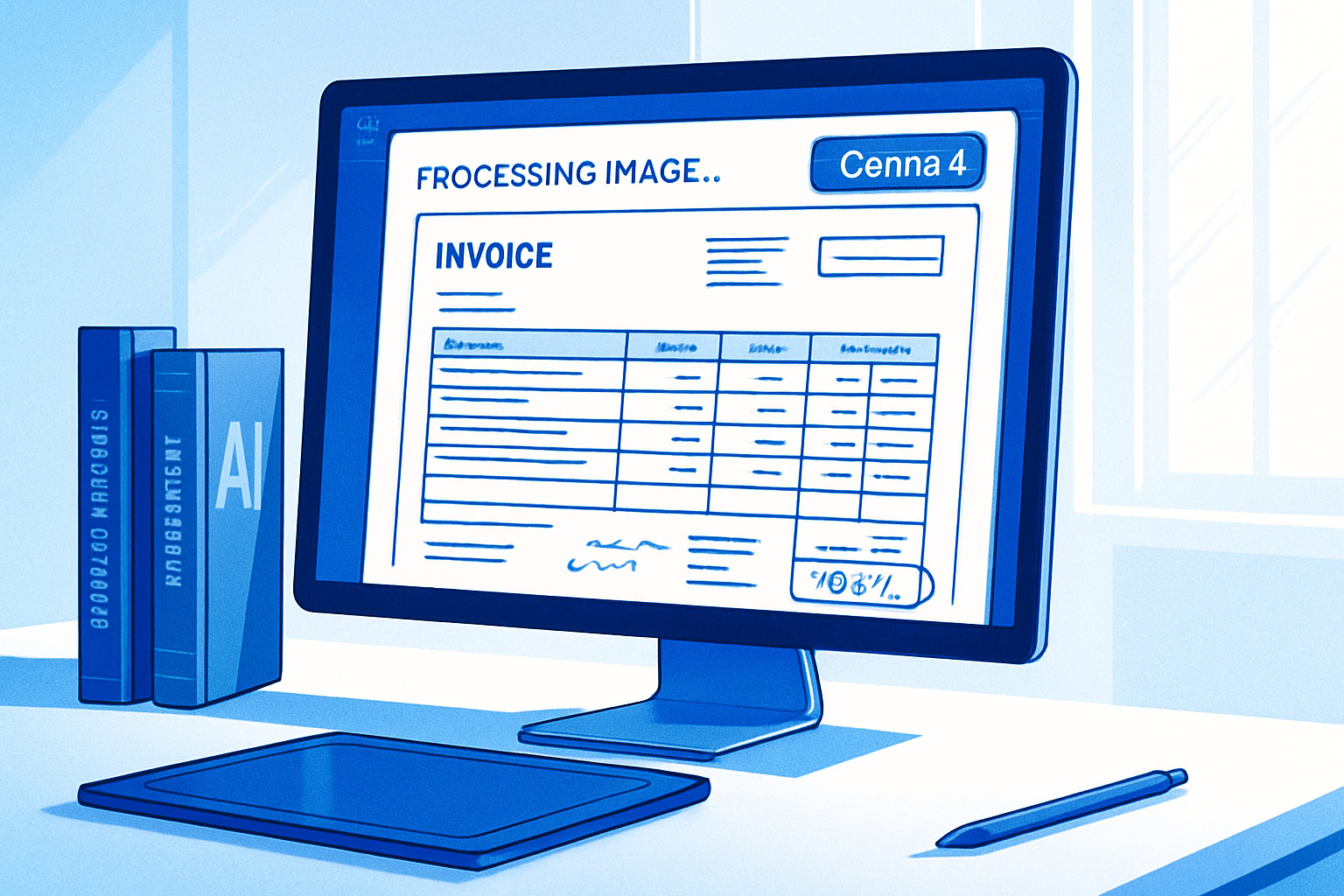
The image approach offers a radically different solution. By converting each PDF page into a high-resolution image, this method allows for feeding a vision-language model that interprets the content of the page as a human would. This eliminates the need for complex optical character recognition (OCR) pipelines or layout parsers.
The Gemma 4 model, developed by Google DeepMind and launched on April 2, 2026, embodies this approach. Distributed under the Apache 2.0 license, Gemma 4 includes document/PDF parsing among its many capabilities, such as OCR, graph understanding, handwriting recognition, and screen comprehension. Operating entirely locally, it ensures that data never leaves the user's server, thus eliminating the need for API keys or cloud calls.
A Local Document Input Pipeline
One illustrative use case of Gemma 4 is the processing of supplier invoices. The model efficiently extracts the supplier name, invoice number, line items, totals, and due date, producing a structured JSON file. This capability applies to both scanned PDFs and digital PDFs.
Why Treat PDFs as Images?
PDFs generally fall into two categories: digital PDFs and scanned PDFs. Digital PDFs contain an embedded text layer, making the text selectable and extractable. Tools like pdfplumber, PyPDF2, and pdfminer work well with these documents, returning text in reading order for simple single-column documents.
In contrast, scanned PDFs are essentially images encapsulated in a PDF file, without a text layer. Each word is represented by pixel data, rendering traditional tools ineffective. The image approach unifies these two worlds by rendering each page, whether from a scanner, printer, or PDF generator, as an image. The model does not need to know what type of PDF it is processing.
Layout and Structure
Even for digital PDFs with selectable text, traditional extraction tools often return text in an order that disrupts the original structure. For example, a two-column invoice with line items on the left and totals on the right may be returned in a disordered manner, making analysis difficult. Tables with merged cells pose an even greater problem, as the extracted text loses all context of rows and columns.
A vision-language model, on the other hand, interprets the image as a visual artifact. It perceives tables as tables, columns as columns, and forms as forms, allowing for line-by-line reading of line items.
Capabilities and Hardware Requirements of Gemma 4
Gemma 4 offers variable visual token budgets, ranging from 70 to 1120 tokens per image, allowing control over the trade-off between accuracy and speed. For dense document parsing, a budget of 1120 tokens is recommended, while for quick classification or extracting a single field, 280 tokens are sufficient and speed up the process.
The model is available in four sizes, with the choice primarily depending on the available hardware capabilities. For optimal operation, certain hardware requirements must be met:
- GPU VRAM (E4B-it): 12 GB+ (RTX 3080 Ti / RTX 4080)
- GPU VRAM (E2B-it): 8 GB+ (RTX 3060 / RTX 4060 Ti)
While CPU inference is possible, it is slow, taking between 30 and 90 seconds per page depending on the token budget and the machine. For those without a local GPU, the free T4 GPU from Google Colab (15 GB VRAM) is a viable alternative.
Access to Hugging Face is necessary, as Gemma 4 models are restricted. Simply create a free account on huggingface.co, visit the pages google/gemma-4-E4B-it or google/gemma-4-E2B-it, and accept the model's terms. Then, a read token can be generated at huggingface.co/settings/tokens.
Installation and Configuration
To use Gemma 4, certain dependencies must be installed and configured. Here are the steps to follow:
- Python 3.10+ required
python --version
- Create a virtual environment
python -m venv gemma4-env
source gemma4-env/bin/activate       # macOS / Linux
gemma4-env\Scripts\activate          # Windows
- Install the packages
pip install "transformers>=4.51.0" \
"torch>=2.3.0" \
"accelerate>=0.30.0" \
"pymupdf>=1.24.0" \
"Pillow>=10.0.0" \
"bitsandbytes>=0.43.0"
- Log in to Hugging Face (paste your read token when prompted)
pip install huggingface_hub
huggingface-cli login
Configuration Check
Before loading Gemma 4, it is advisable to check your computing environment with the device_check.py script:
def detect_device():
    # Detects the best available computing device.
    # Returns (device_str, dtype, load_kwargs) to use with from_pretrained.
python device_check.py
Converting PDFs to Images with PyMuPDF
PyMuPDF (also known as pymupdf or fitz) is the ideal tool for converting PDFs to images. It does not require external dependencies like Poppler or Ghostscript, and allows rendering pages at an arbitrary resolution in dots per inch (DPI), producing output compatible with PIL that the Gemma 4 processor accepts directly.
DPI plays a crucial role. The default rendering of PyMuPDF is at 72 DPI, which is sufficient for on-screen display but inadequate for dense text. At 200 DPI, everything becomes readable, and at 300 DPI, the quality is comparable to that of a scanner, ideal for handwritten content and multilingual documents with small glyphs. However, higher resolution results in a larger image and consumes more visual tokens from the context of Gemma 4.
Using pdf_renderer.py
To convert PDF pages to images, here’s how to use pdf_renderer.py:
Prerequisites: pip install pymupdf Pillow
Usage: import and instantiate PDFRenderer; call render_page() or render_all().
from PIL import Image
from pathlib import Path

class PDFRenderer:
    # Converts PDF pages to PIL images for downstream VLM inference.
    # No external dependencies beyond PyMuPDF -- no Poppler, no Ghostscript.
    # Output images are in RGB mode, ready for direct use with the Gemma 4 processor.

    def __init__(self, dpi: int = 200):
        # dpi: Rendering resolution.
        # 150 -- quick classification pass (fewer tokens, lower quality)
        # 200 -- production standard for typed text and printed documents
        # 300 -- high fidelity, recommended for handwriting or small glyphs
        self._zoom = dpi / 72.0
        self._matrix = pymupdf.Matrix(self._zoom, self._zoom)

    def render_page(self, pdf_path: str, page_index: int = 0) -> Image.Image:
        # Render a single PDF page as a PIL image.
        # pdf_path: Path to the PDF file
        # page_index: Zero-based page index (0 = first page)
        # PIL.Image.Image in RGB mode, ready for the Gemma 4 processor
path = Path(pdf_path)
if not path.exists():
    raise FileNotFoundError(f"PDF not found: {pdf_path}")
doc = pymupdf.open(str(path))
if page_index >= len(doc):
    raise IndexError(f"Page index {page_index} out of range -- this PDF has {len(doc)} page(s)")
page = doc[page_index]
pix = page.get_pixmap(matrix=self._matrix)
return Image.frombytes("RGB", [pix.width, pix.height], pix.samples)
def render_all(self, pdf_path: str) -> list[Image.Image]:
    # Render each page of a PDF into a list of PIL images.
    # Returns the pages in order: index 0 = first page, index -1 = last page.
Brief IA — L'actualité IA en français
L'essentiel de l'actualité de l'intelligence artificielle, décrypté et expliqué chaque jour.