ChatGPT: The Hidden Commands That Revolutionize Your Productivity
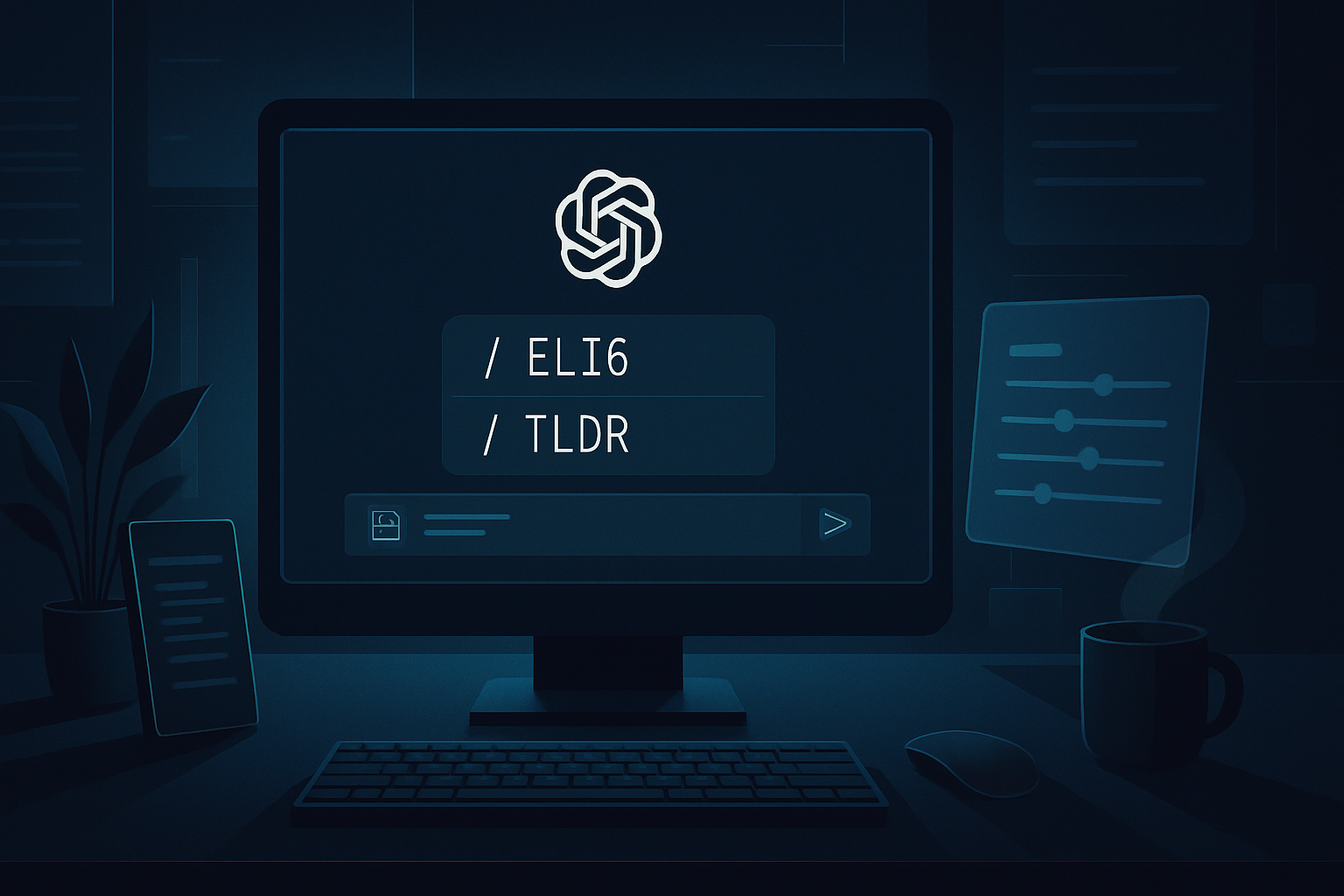
Slash Commands: A Powerful Tool for ChatGPT
Slash commands, while not official features of OpenAI, represent an effective way to optimize the use of ChatGPT. These commands are textual instructions that can be placed at the beginning or end of a request. The slash itself does not trigger anything in the model, but it helps interpret the request more quickly and accurately by adjusting the role, output format, tone, and depth of responses.
These commands are not hidden in the ChatGPT interface and are not listed as a native function of the product. Instead, they are the result of user experience, with individuals discovering that certain abbreviations, such as ELI5, TLDR, or SWOT, produce consistent results. These labels are common on the internet, and the model has encountered them thousands of times during its training, allowing it to associate them with specific response structures.
Over 30 Commands for Various Uses
These commands come from recent materials from 2025-2026 and were tested on real use cases: only those that behave consistently enough to be useful were retained. They are organized into several categories based on their utility.
Simplification and Explanation
- /ELI5: This command simplifies complex concepts to explain them as if to a five-year-old, eliminating jargon and relying on simple analogies.
- /ELI10: Similar to /ELI5 but slightly more advanced, it offers a simple explanation that is less childlike.
- /STEP-BY-STEP: This command transforms responses into numbered steps, making it easier to understand a process progressively.
- /FIRST PRINCIPLES: It explains a concept from the ground up, allowing for fundamental understanding.
- /SIMPLIFY: Rewrites or explains something in simpler language without losing the original meaning.
Brevity and Focus
- /TLDR: This command condenses a text into 2 to 3 sentences, providing a quick and effective summary.
- /BRIEFLY: Responds in 1 to 2 sentences, allowing for a concise answer.
- /EXEC SUMMARY: Provides an executive summary with conclusions and action points, useful for professional presentations.
- /SMARTBRIEF: Summarizes with an emphasis on what is most important, ideal for quick decision-making.
Output Format and Structure
- /FORMAT AS: [format]: Imposes a specific structure such as TABLE, JSON, CSV, or MARKDOWN, according to user needs.
- /CHECKLIST: Transforms the response into a checklist, practical for tasks to follow.
- /SCHEMA: Produces structured data, facilitating the organization of information.
- /LISTIFY: Converts any text into a clear list, improving readability.
- /OUTLINE: Constructs the structure of an article or document, helping to organize ideas.
- /WIREFRAME: Describes a wireframe in textual form, useful for designers.
Role, Tone, and Audience
- /UXMODE: Analyzes the task as a UX expert, offering professional insights.
- /ACT AS: [role]: Switches to specialist mode, for example: /ACT AS: UX researcher, for specialized analyses.
- /TONE: [tone]: Defines the tone of voice, for example: /TONE: friendly, to adapt communication.
- /AUDIENCE: [who]: Adapts the response for a specific audience, for example: /AUDIENCE: beginner designers.
- /JARGON: Uses professional terminology where relevant, for specialized communications.
- /HUMANIZE or /HUMAN: Makes the text more natural and less robotic, enhancing engagement.
- /STYLE=[style]: Writes in a specific style or mimics a known format, for example: /STYLE=TED Talk.
Le brief IA que les pros lisent chaque soir
Les 7 actus IA du jour, décryptées en 5 min. Gratuit.
Inclus dès l'inscription : notre sélection des meilleurs guides & comparatifs IA.
Choisissez votre rythme
Gratuit · Pas de spam · Désabonnement en 1 clic
Analysis and Critical Thinking
- /SWOT: Standard SWOT analysis: strengths, weaknesses, opportunities, threats, for strategic assessments.
- /COMPARE: A vs B: Compares options based on clear criteria, facilitating informed choices.
- /PROS_CONS: Constructs a table of pros and cons, for weighing decisions.
- /PITFALLS: Highlights common mistakes and hidden issues, to avoid pitfalls.
- /COUNTERARGUE: Generates counterarguments against your idea, stimulating critical thinking.
Editing and Rewriting
- /REWRITE AS: [style]: Rewrites in a specific style or platform format, to adapt the content.
- /CLEANUP: Eliminates repetitions and improves structure, for smoother text.
- /HOOK: Generates more impactful opening lines, to captivate the audience.
- /EXPAND: Develops the topic further, for a detailed analysis.
Advanced and Professional Modes
- /DEV MODE: Technical mode for code and specifications, for developers.
- /CODE: [language]: Returns ready-to-use code with comments, to facilitate development.
- /DEBUG: Identifies issues in the code, to improve quality.
Output Quality Control Commands
- /EVAL-SELF: Self-critique after generating the response, to improve accuracy.
- /REFLECTIVE MODE: Meta-analysis of what may have been missed, for deeper reflection.
- /NO AUTOPILOT: Discourages superficial and generic responses, for more meaningful interactions.
Utility Commands
- /RESET: Resets the working context, for a fresh start.
- /CONTEXT STACK: n: Asks the model to rely on the last n messages, to maintain continuity.
Use Case Scenarios for Commands
Five simple scenarios that integrate directly into daily work.
Scenario 1: A UX Audit in Two Minutes
You need a quick review of a food delivery app before a client call. One message is enough:
/ACT AS: Senior UX designer
/TONE: professional
/FORMAT AS: TABLE
Audit of a mobile food delivery application.
Evaluate navigation, integration, visual hierarchy, and accessibility.
The result will typically be a structured table with observations and recommendations for each category.
Scenario 2: Article Structure from Scratch
You are sitting down to write and have no clear entry point. Instead of struggling with a blank page, you can get a usable structure in under a minute:
/ROLE: content strategist TASK: article structure FORMAT: OUTLINE
Topic: “How a UX Designer Can Use AI in 2026”
/AUDIENCE: intermediate designers
Scenario 3: Quick Tool Comparison
Trying to choose between Figma, Framer, and other design tools. Use a command to quickly compare their features:
/COMPARE: Figma vs Framer
/FORMAT AS: TABLE
Criteria: ease of use, integrations, pricing, community support
This command generates a clear comparative table, facilitating decision-making.
Brief IA — L'actualité IA en français
L'essentiel de l'actualité de l'intelligence artificielle, décrypté et expliqué chaque jour.