Microsoft Copilot: Remap Your Key for Greater Utility
A Dedicated AI Key from Microsoft
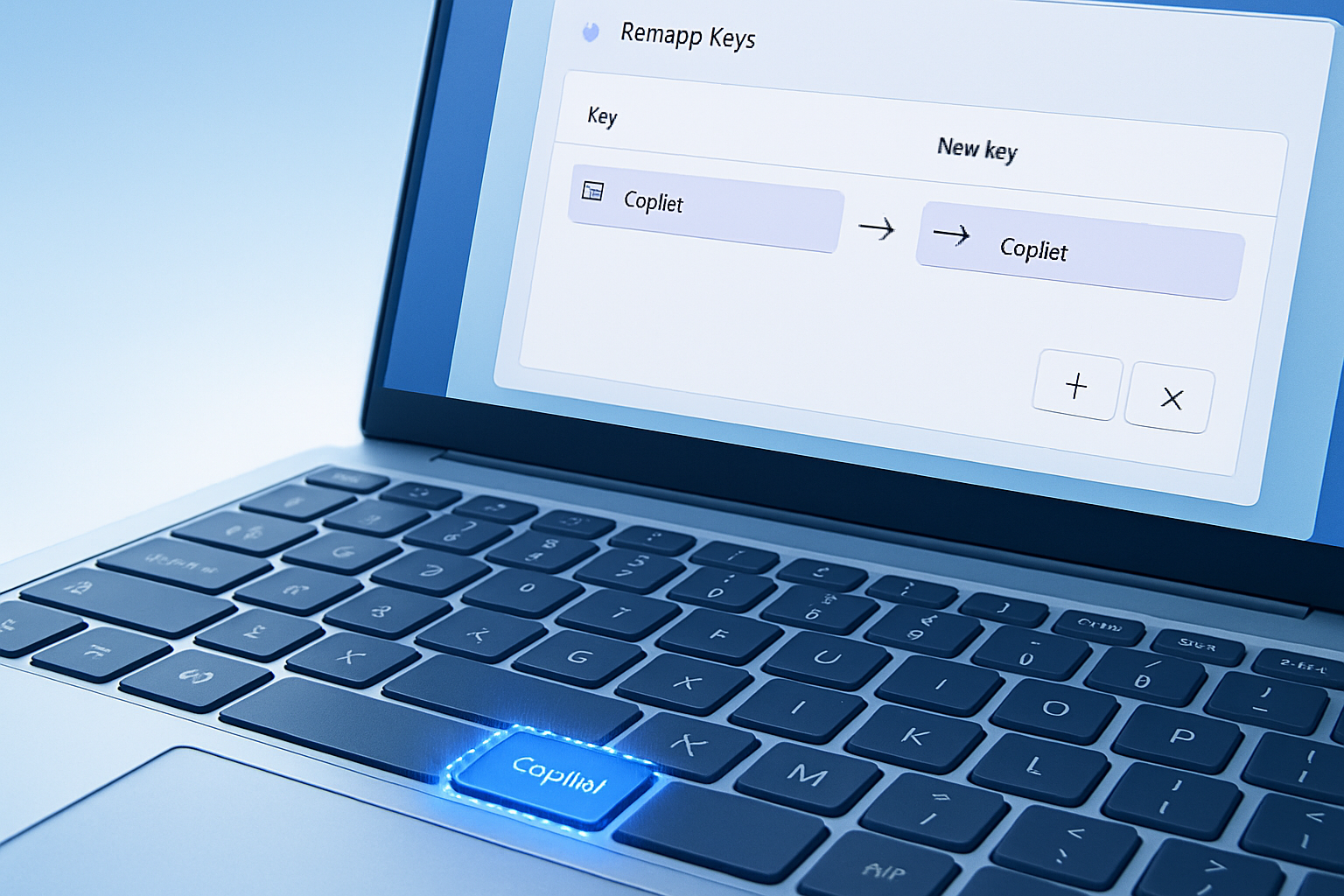
On recent laptops, a new key has appeared: the Copilot key. By pressing it, users can directly launch Microsoft’s Copilot AI. However, for those who do not use this feature, it is possible to redefine this key for other purposes.
If you have acquired a Windows laptop in recent years, you have likely noticed this Copilot key. It is generally located to the right of the space bar, providing quick access to Microsoft’s AI for asking questions or initiating conversations.
The Origin of the Copilot Key
Microsoft introduced this key over two years ago on its own Copilot+ Surface devices. Since then, manufacturers like Lenovo, Dell, and HP have integrated this feature into their models. Today, even laptops that do not carry the Copilot+ label are equipped with this key.
The addition of this key is part of Microsoft’s strategy to integrate its artificial intelligence more deeply into Windows. The introduction of a new key on a physical keyboard is a rare event, comparable to the addition of the Windows key in the 1990s.
An Underused Key
For those who do not often use Copilot, this key may seem superfluous. Even for regular AI users, there are other ways to access Copilot, such as through the icon in the taskbar or the Windows + C shortcut. It is even possible to activate it via voice command by saying "Hey, Copilot."
The addition of this key also has drawbacks. It often replaces the Right Ctrl key or the Context Menu key, which can pose problems for those who rely on these keys for shortcuts or assistive tools.
Towards a Remapping Solution
Microsoft has acknowledged these issues. In a recent support article, the company announced that a Windows 11 update would allow users to remap the Copilot key to function as the Right Ctrl or Context Menu key.
Remapping the Copilot Key: Two Methods
While waiting for this update, there are two main methods to remap the Copilot key.
Le brief IA que les pros lisent chaque soir
Les 7 actus IA du jour, décryptées en 5 min. Gratuit.
Inclus dès l'inscription : notre sélection des meilleurs guides & comparatifs IA.
Choisissez votre rythme
Gratuit · Pas de spam · Désabonnement en 1 clic
Remapping via Windows Settings
It is possible to remap the key directly in Windows settings, although the options are limited. To do this, go to Settings, then Bluetooth & devices, and select Keyboard. Under Shortcuts and shortcut keys, you will find the option "Customize the Copilot key on the keyboard." By clicking on the dropdown menu, you will discover other alternatives.
- You can choose to configure it to launch the Windows search tool.
- By selecting Custom, additional options appear. For example, you can set it to launch the Google app for Windows. However, this method remains limited, and the next one offers more flexibility.
Using PowerToys for Advanced Remapping
Microsoft's free utility PowerToys offers a keyboard remapping tool called Keyboard Manager. This tool allows you to remap specific keys as well as keyboard shortcuts, as long as they adhere to certain rules and do not conflict with those already reserved by Windows.
To use this option, download PowerToys from its GitHub page or the Microsoft Store. Once installed, open PowerToys and select Keyboard Manager in the Input and Output section. Click on Remap a shortcut. (The Copilot key is technically a shortcut.)
In the Remap shortcuts screen, click on the pencil icon next to Shortcut in the selection section on the left. Press the Copilot key to register it as the key to be remapped. You will then see the selected keys as Win (Left), Shift (Left), and F23. Click OK.
In the To section on the right, select the function you want to activate with the Copilot key. For example, you can configure it to function as the Right Ctrl key. You can also choose to disable it, but it is often more useful to remap it. Once finished, click OK in the top right.
Before leaving PowerToys, ensure that the switch for Keyboard Manager is turned on. Then test the Copilot key to verify that it has been remapped correctly.
If you configured it to function as the Right Ctrl key, test it by opening a document and using shortcuts like Ctrl+C to copy or Ctrl+V to paste. If it works, the remapping is successful.
To remove the remapping, return to PowerToys, click on Remap a shortcut, then click on the trash can icon next to the remapping you created.
Brief IA — L'actualité IA en français
L'essentiel de l'actualité de l'intelligence artificielle, décrypté et expliqué chaque jour.