Windows 11: Turn the Copilot Key into a Custom Tool
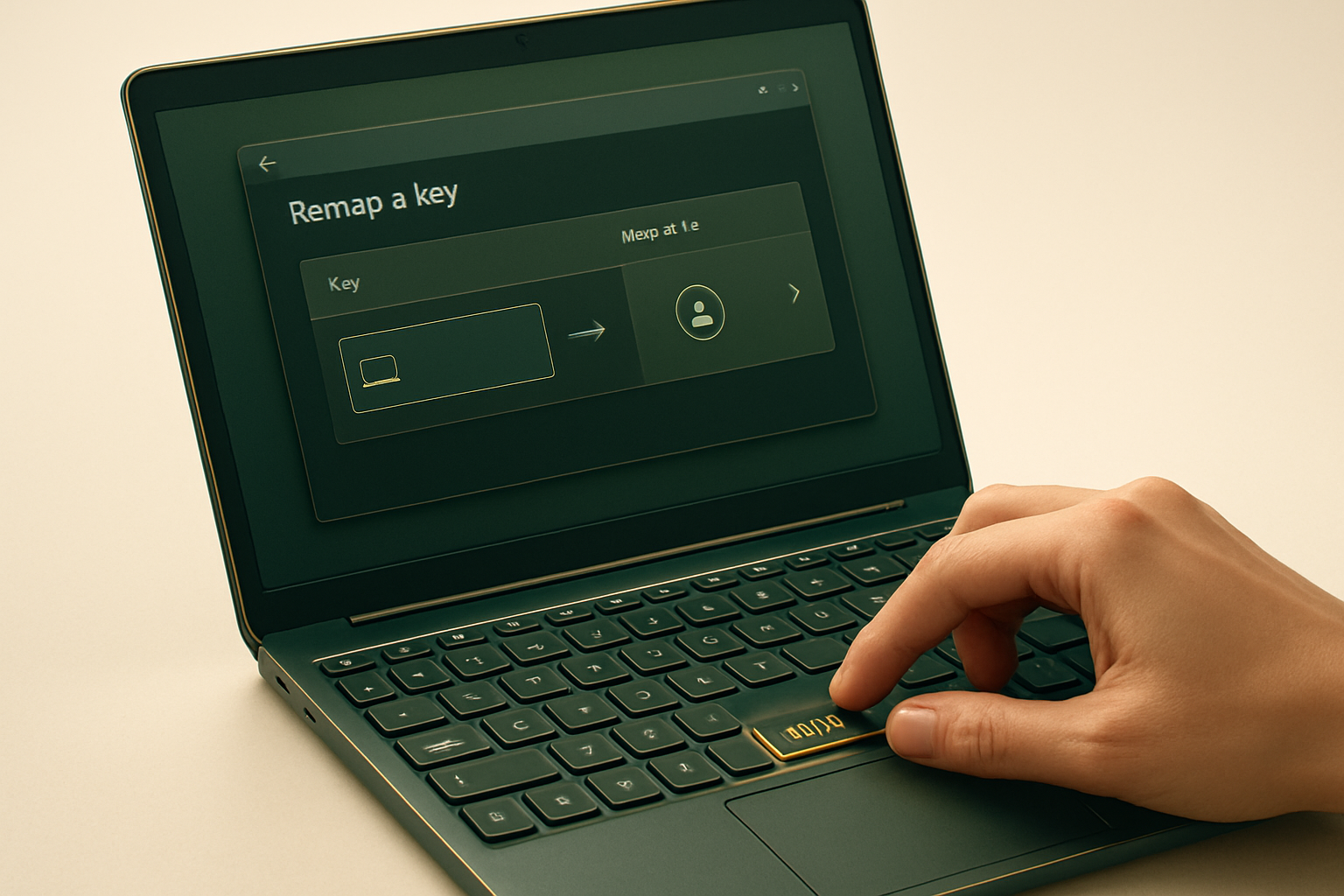
The Copilot Key: A Flexible Tool on Windows 11
The Copilot key on laptops equipped with Windows 11 is specifically designed to activate Microsoft's AI assistant. However, for those who do not frequently use this feature, it is possible to reassign this key for other more relevant uses.
For about two years, new Windows laptops have often come with a dedicated Copilot key. Positioned to the right of the space bar, this key allows quick access to Microsoft's AI assistant, facilitating interaction with the AI to ask questions or engage in conversations. This key was introduced by Microsoft with its Copilot+ Surface laptops, and third-party manufacturers like Lenovo, Dell, and HP quickly followed suit by integrating this key into their own Copilot+ models. Today, even laptops that are not explicitly labeled as Copilot+ come equipped with it.
This initiative is part of Microsoft's strategy to integrate AI into all aspects of Windows. The addition of a new key on a keyboard is a rare event, the last similar innovation being the introduction of the Windows key in the 1990s.
Limited Use for Some Users
For those who do not often use Copilot, this key may seem superfluous. Even for regular users, there are other ways to access Copilot, such as the icon in the taskbar or the shortcut Windows + C. It can also be activated by voice command with "Hey, Copilot." However, the inclusion of this key also presents a significant drawback. Generally, it replaces the right Ctrl key or the context menu key. This substitution poses problems for users who may need these keys for shortcuts or assistive technologies.
Microsoft has acknowledged this drawback and announced that an upcoming update for Windows 11 will allow users to remap the Copilot key to function as the right Ctrl or context menu key.
Le brief IA que les pros lisent chaque soir
Les 7 actus IA du jour, décryptées en 5 min. Gratuit.
Inclus dès l'inscription : notre sélection des meilleurs guides & comparatifs IA.
Choisissez votre rythme
Gratuit · Pas de spam · Désabonnement en 1 clic
Methods to Remap the Copilot Key
While waiting for this update, there are two methods to remap the Copilot key to make it more useful.
Remapping via Windows Settings
In Windows settings, although the options are limited, you can remap the Copilot key. Go to Settings, then Bluetooth & devices, and finally Keyboard. Under Shortcuts and function keys, you can customize the Copilot key. For example, you can set it to launch the Windows search tool or other applications like Google for Windows. You can set it to Search so that pressing the key launches the Windows search tool. By choosing Custom, you will see other options. Personally, I was able to change it to trigger the Google for Windows app. However, since your options are limited, the next method is more effective.
Using PowerToys for Advanced Remapping
For more extensive customization, Microsoft's free software PowerToys offers a Keyboard Manager. This tool allows you to remap keys and shortcuts according to your needs, provided you adhere to certain compatibility rules with Windows.
To use this method, download PowerToys from GitHub or the Microsoft Store. Once installed, open PowerToys and select Keyboard Manager. Click on Remap a shortcut and register the Copilot key as the shortcut to modify. You can then choose a new function for this key, such as Ctrl (Right), or even disable it. It is important to note that the Copilot key is technically a shortcut rather than a true key. When configuring in PowerToys, the keys selected for the Copilot key appear as Win (Left), Shift (Left), and F23.
Make sure the Keyboard Manager is enabled for the changes to take effect. Then test the new configuration by using keyboard shortcuts in a text document. If you remapped it to the right Ctrl key, it is easy to test. Open a text file or document and use the Copilot key instead of the Ctrl key for familiar shortcuts like Ctrl+C for Copy, Ctrl+V for Paste, or Ctrl+Z for Undo. If it works, you are ready to use it.
If you wish to revert to the original configuration, simply delete the remapping in PowerToys by clicking on the trash can icon next to the modification made.
Brief IA — L'actualité IA en français
L'essentiel de l'actualité de l'intelligence artificielle, décrypté et expliqué chaque jour.